
Objective
This SOP outlines the steps to remove a Gmail account from the Mail app on an iPhone and add a Microsoft Exchange account after IT Solver has migrated your email service from Gmail to Microsoft 365.
Key Steps
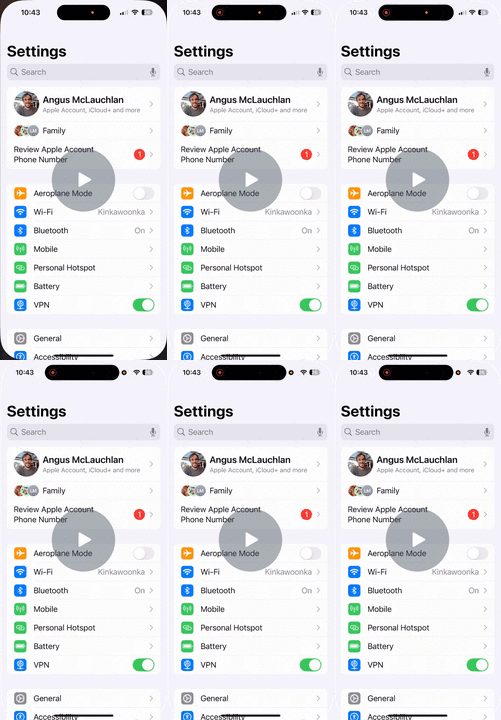
Step 1: Access Settings 0:01
- Open the Settings app on your iPhone.
- Scroll down to find the Mail app.
Step 2: Locate Mail Accounts 0:08
- In the latest iOS version, look for Mail under the apps section.
- If using an older version of iOS, you may need to find Mail and Accounts.
Step 3: Delete Gmail Account 0:35
- Find your Gmail account listed under Mail Accounts.
- Select the account and choose the option to delete it.
Step 4: Confirm Deletion 0:35
- Deleting the account will remove associated contacts and calendar data from the device.
Step 5: Add a New Account (Optional) 0:59
- If you wish to continue using the Mail app, you can add a new account.
- Alternatively, consider using the Outlook app for better integration with Microsoft services.
Step 6: Select Account Type 1:11
- Choose Microsoft Exchange as the account type when adding a new account.
Step 7: Enter Account Details 1:20
- Input your account details as prompted.
- If necessary, use 1Password for autofill.
Step 8: Grant Permissions 1:49
- You may need to consent to allow Apple to access your Microsoft email account.
Step 9: Select Services to Sync 2:00
- Choose which services you want to sync (Mail, Contacts, Calendar, etc.).
Step 10: Save Changes 2:16
- After selecting the services, make sure to save your changes.
Cautionary Notes
- Ensure you have backed up any important data before deleting the Gmail account.
- Be aware that deleting the account will remove all associated data from the device.
Tips for Efficiency
- Use 1Password or a similar password manager to quickly fill in account details.
- Familiarize yourself with the settings layout to navigate quickly.
Link to Loom
https://loom.com/share/9168250d514349dca08e23e2ceab2efd
Follow-Up
If you've encountered this issue and followed the steps outlined in this article, we'd love to hear from you. Please leave a comment below to share whether this solution helped resolve the problem. Additionally, if you found a different method that worked, we encourage you to share that as well. Your feedback is invaluable in helping us and others who may face similar issues.
Want Further Assistance?
If you're still facing issues or would like personalized guidance, we're here to help. Check out our dedicated support plans at IT Solver Support Plans for expert assistance tailored to your needs.
Comments
0 comments
Article is closed for comments.