
This guide walks you through connecting Microsoft Defender for Endpoint to Intune and onboarding Windows devices. We'll focus on Windows as the priority, keeping things simple and straightforward.
Overview
Connecting Intune and Defender for Endpoint lets you onboard devices for threat detection and risk assessment. Once connected, Intune handles onboarding Windows devices automatically using a configuration package from Defender.
Prerequisites
- Administrative access to the Microsoft Defender portal (security.microsoft.com) and Microsoft Intune admin center.
- A Microsoft 365 subscription that includes Defender for Endpoint and Intune.
- Devices running Windows 10/11 managed by Intune.
- Role-based access: Your account needs simply Global Administrator, OR Read and Modify permissions for Mobile Threat Defense in Intune (included in the Endpoint Security Manager role).
How to Connect and Onboard
-
Open the Microsoft Defender portal at security.microsoft.com. (You can also access it from Intune: Go to Endpoint security Microsoft Defender for Endpoint, and click the link at the bottom to open the Defender portal if the connection status is Unavailable.)
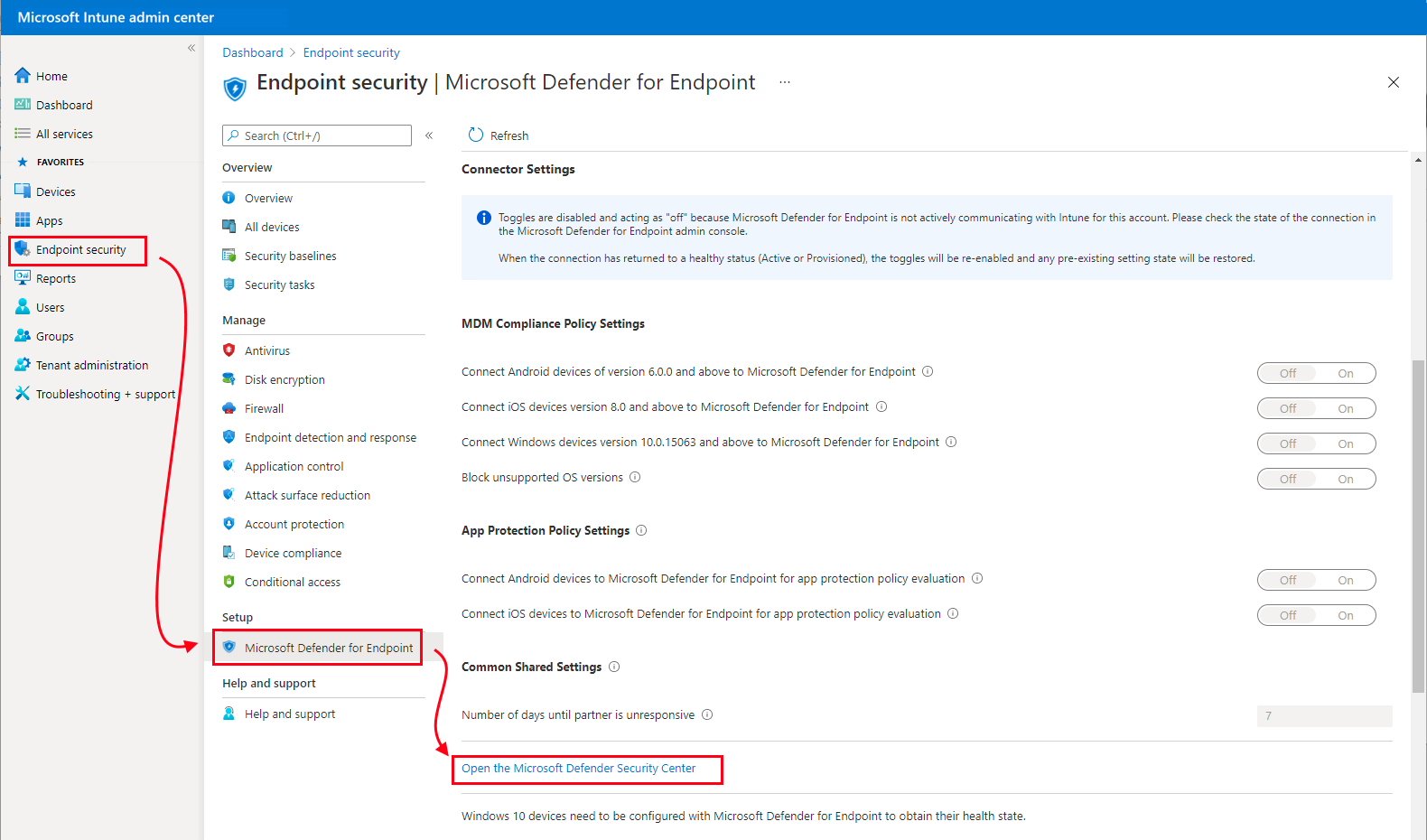
If the connection is already active, the link reads: Open the Microsoft Defender for Endpoint admin console.
-
In the Defender portal, go to Settings Endpoints Advanced features. Turn on the Microsoft Intune connection toggle.

- Click Save preferences. The services will sync at least every 24 hours.
- Back in Intune (Endpoint security Microsoft Defender for Endpoint), the Connection status should now show Enabled. Under Compliance policy evaluation, set Connect Windows devices to Microsoft Defender for Endpoint to On.
- Go to Endpoint security > Endpoint detection and response > and select the EDR Onboarding Status tab
-
Use the preconfigured policy for quick deployment: On the EDR Onboarding Status tab, select Deploy preconfigured policy, name it, and save—it targets All Devices automatically.

This deploys the onboarding package to devices, enabling communication with Defender for threat scanning and risk reporting.Alternatively: Create your own EDR policy to onboard Windows devices, create an Endpoint Detection and Response (EDR) policy:
- Go to Endpoint security Endpoint detection and response Create Policy.
- Select Platform: Windows 10 and later; Profile: Endpoint detection and response.
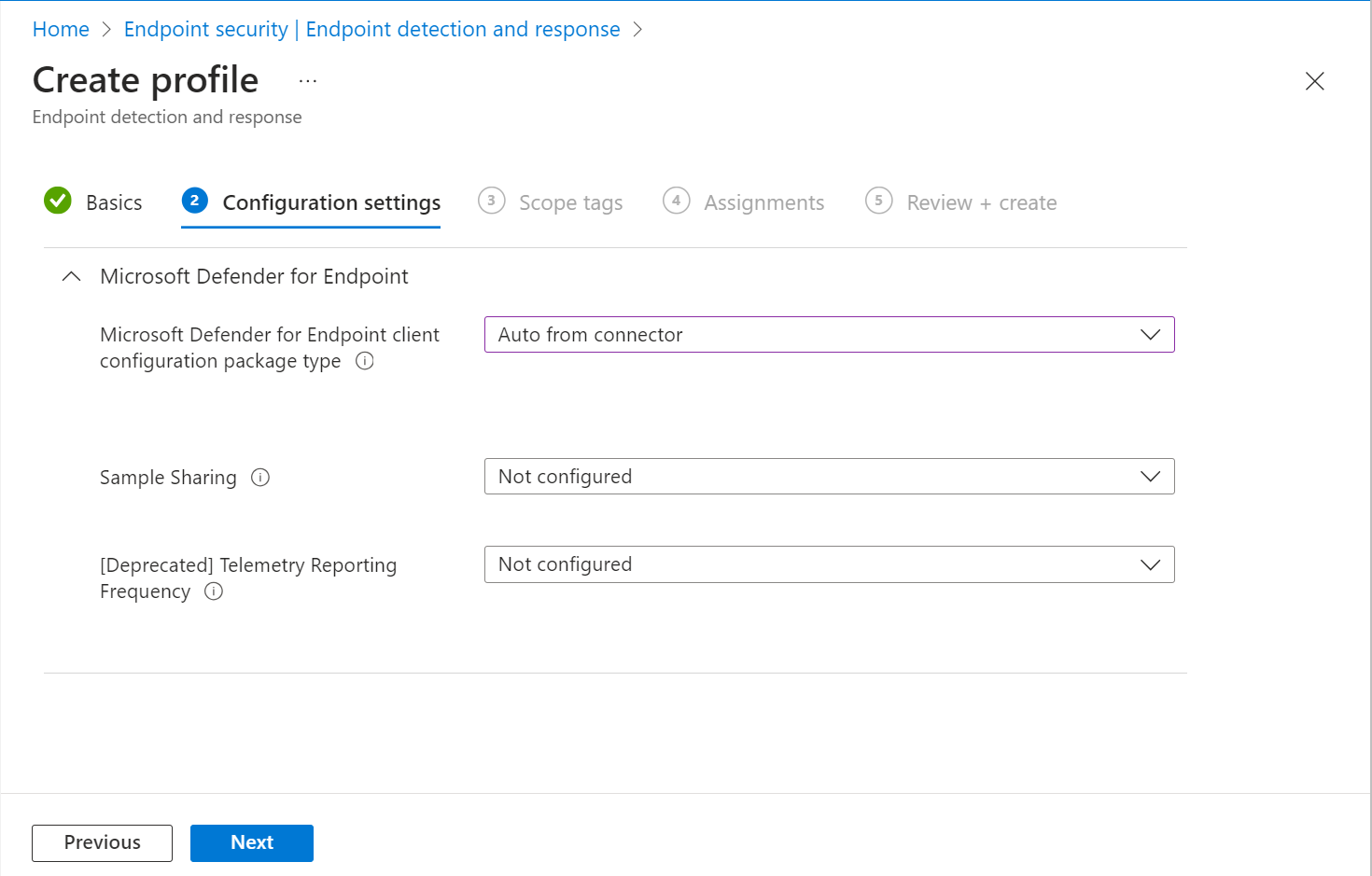
- On Configuration settings, set Microsoft Defender for Endpoint client configuration package type to Auto from connector.
- Assign to groups (e.g., All Devices) and create the policy.
Additional Information
- Onboarding is a one-time action per device.
- Devices report risk levels based on your compliance policies.
- For other platforms (macOS, Android, iOS), refer to Microsoft docs for manual onboarding steps.
Troubleshooting Tips
- If the connection status remains Unavailable, double-check admin permissions and try refreshing.
- Policy conflicts: Avoid overlapping device configuration and EDR policies for the same settings.
- View onboarding status in Intune: Endpoint security Endpoint detection and response EDR Onboarding Status tab.
Was this helpful?
If you've followed this guide, we'd love to hear about your experience. Please leave a comment below to share whether this guide helped you achieve your goal. If you found an alternative approach that worked, we encourage you to share that as well. Your feedback helps us improve our documentation and assists others in the community.
Need Further Assistance?
If you need additional support or would like personalized guidance, we're here to help. Check out our dedicated support plans at IT Solver Support Plans for expert assistance tailored to your needs.
Comments
0 comments
Please sign in to leave a comment.