
16 May 2019 Update: after Google Drive FS updated (Material redesign, v31.0.13.0), I got the System Extension Blocked which was easily resolved by following the message. See below for step-by-step instructions for macOS. Further on is more troubleshooting steps for macOS and Windows.
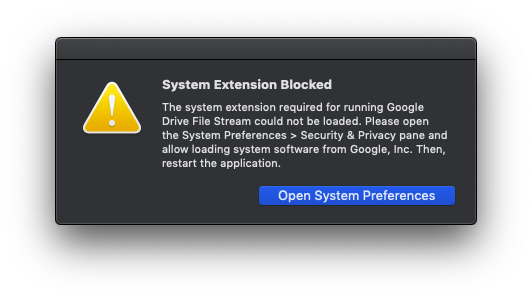
I love the intention of Drive File Stream with on-demand access to my whole Drive without worrying about local storage limitations. But this problem is really annoying to lose native file access on my Mac, also shortcuts get broken and favourites in Finder disappear.
I've had this error 2 times on my Mac (High Sierra) since using Google Drive Sync. On one occasion, a simple restart was the fix, and the other occasion I had to do the below steps.
macOS
- Open Drive File Stream.
- At the top left, go to
System Preferences
- Next to "System software from developer 'Google, Inc.' was blocked from loading," click Allow.

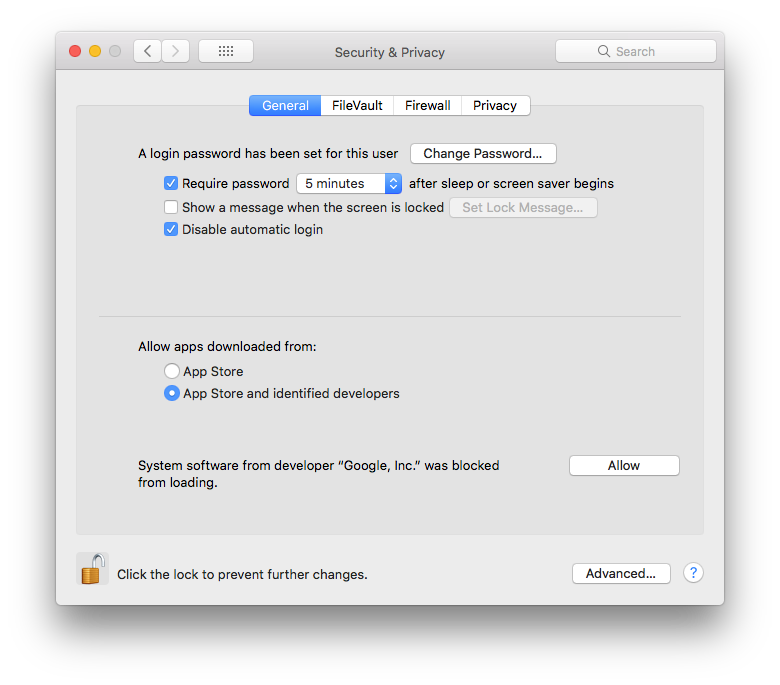
If Drive File Stream still isn't working, then continue with these troubleshooting steps.
Step 1: Sign out and quit Drive File Stream.
- In your task bar, open Drive File Stream
.
- Click More
and then Sign out.
- Return to Drive File Stream
Step 2: Uninstall Drive File Stream.
On a single computer:
Use standard procedures to uninstall the Drive File Stream application. Consult the OS instructions for your computer if you need assistance.
Across your organisation:
Use the command:
sudo rm -rf /Applications/Google\ Drive\ File\ Stream.app/
Important: When running the rm -rf command, it’s critical that you specify the proper directory. It will not give you a chance to confirm deletions. Enter the command above exactly as it appears.
Step 3: Clear files cached on your computer.
To clear the Drive File Stream cache, delete the user folder using this command:
rm -rf ~/Library/Application\ Support/Google/DriveFS
Alternative: Use Finder to delete the DriveFS folder, the library folder may be hidden. To find it:
- Open Finder.
- On your keyboard, hold Option.
- In the menus at the top of your screen, click Go
Step 4: Reinstall Drive File Stream
- Uninstall Drive File Stream, as described above. Make sure to complete step 3, to clear cached files.
- Redeploy or reinstall Drive File Stream.
Windows
Step 1: Sign out and quit Drive File Stream.
- In your task bar, open Drive File Stream
- Click More
- Return to Drive File Stream
Step 2: Uninstall Drive File Stream.
On a single computer:
Use standard procedures to uninstall the Drive File Stream application. Consult the OS instructions for your computer if you need assistance.
Across your organisation:
Uninstall Drive File Stream, use the command:
%PROGRAMFILES%\Google\Drive File Stream\<VERSION>\uninstall.exe --silent --force_stop
The --force_stop argument is required if Drive File Stream is currently running. The --silentargument is optional. It will suppress uninstall dialogs and skip end-user confirmation of the uninstall.
The UninstallString registry key for Drive File Stream, (Computer\HKEY_LOCAL_MACHINE\SOFTWARE\Microsoft\Windows\CurrentVersion\Uninstall\{6BBAE539-2232-434A-A4E5-9A33560C6283}), points to the uninstall.exe.
Step 3: Clear files cached on your computer.
To clear the Drive File Stream cache, delete the user folder using this command:
del /S /Q %USERPROFILE%\AppData\Local\Google\DriveFS
Alternative: Use Explorer to delete the DriveFS folder. To find it:
Press Win + R to open the run dialog, and then paste %USERPROFILE%\AppData\Local\Google\ and press Enter
Step 4: Reinstall Drive File Stream
- Uninstall Drive File Stream, as described above. Make sure to complete step 3, to clear cached files.
- Redeploy or reinstall Drive File Stream.
Supported operating systems
On 30 January 2018, Google dropped support for Yosemite and older macOS versions with the Google Drive File Stream giving a generic error message 'Google Drive File Stream encountered a problem and has stopped'.
The error message in this scenario should be more helpful, i.e. "Sorry, older versions of macOS including Yosemite (10.10) is no longer supported by File Stream. Please upgrade to latest macOS or switch to Backup & Sync".
- Windows: Windows 7 and up. Windows Server editions are not supported.
- Mac: El Capitan (10.11) and up. For High Sierra (10.13), follow the steps below.
At this stage Backup & Sync works with Mountain Lion (10.8) and higher, or Windows 7 and higher.
More resources
- Capture Drive File Stream logs for support. If you contact support about a Drive File Stream issue, you may be asked to send log files to help resolve the problem.
- Drive File Stream release notes
Google Drive File Stream still not working?
Here are the best support options:
- IT Solver is a Google Cloud Partner and we offer paid support for this single issue or a support plan to give ongoing management and concierge support of your whole organisation.
- If you’re a G Suite Admin, contact G Suite Support.
Comments
34 comments
Great start to 2020, thanks for sharing Chas.
What fixed this issue for me (after trying everything else recommended) was to uninstall, and then in finder show hidden files on the HD (cmd + shift + .) and go to Volumes and delete the Google Drive volume. Then I reinstalled Google File Stream, and once that was done it started working just fine the next time I fired the program up.
Never knew this was on the internet, this was really helpful and it was nice reading it. I will be glad to share it with others. You can also check mine too, it might be helpful. https://www.makeoverarena.com/sefan-ru-apps-videos-game-free-downloads/
Thank you. Not sure which part of those instructions worked, but it fixed my Drive problem.
Please sign in to leave a comment.